macOS menu bar app · Claude Code & Codex
Let your agents run.
Touch some grass.
BlackFlare keeps your Mac awake while Claude or Codex runs — even with the lid closed — and pings you the moment a task finishes or needs you, on your Mac, Telegram, or Slack. Tune your defaults and track your usage right from the menu bar. On-device. Private.

Requires macOS 13 or later · Universal (Apple silicon & Intel)
The gap between "running" and "done"
You kick off a long task and step away. Your Mac dozes off — or you close the lid — and the whole run stalls halfway. Or it finishes — or sits waiting for your input — and you don't notice for an hour. BlackFlare closes every one of those gaps.
- Terminal / CLI
- VS Code
- JetBrains
- Claude Code
- Codex
Shut the lid. The session keeps running.
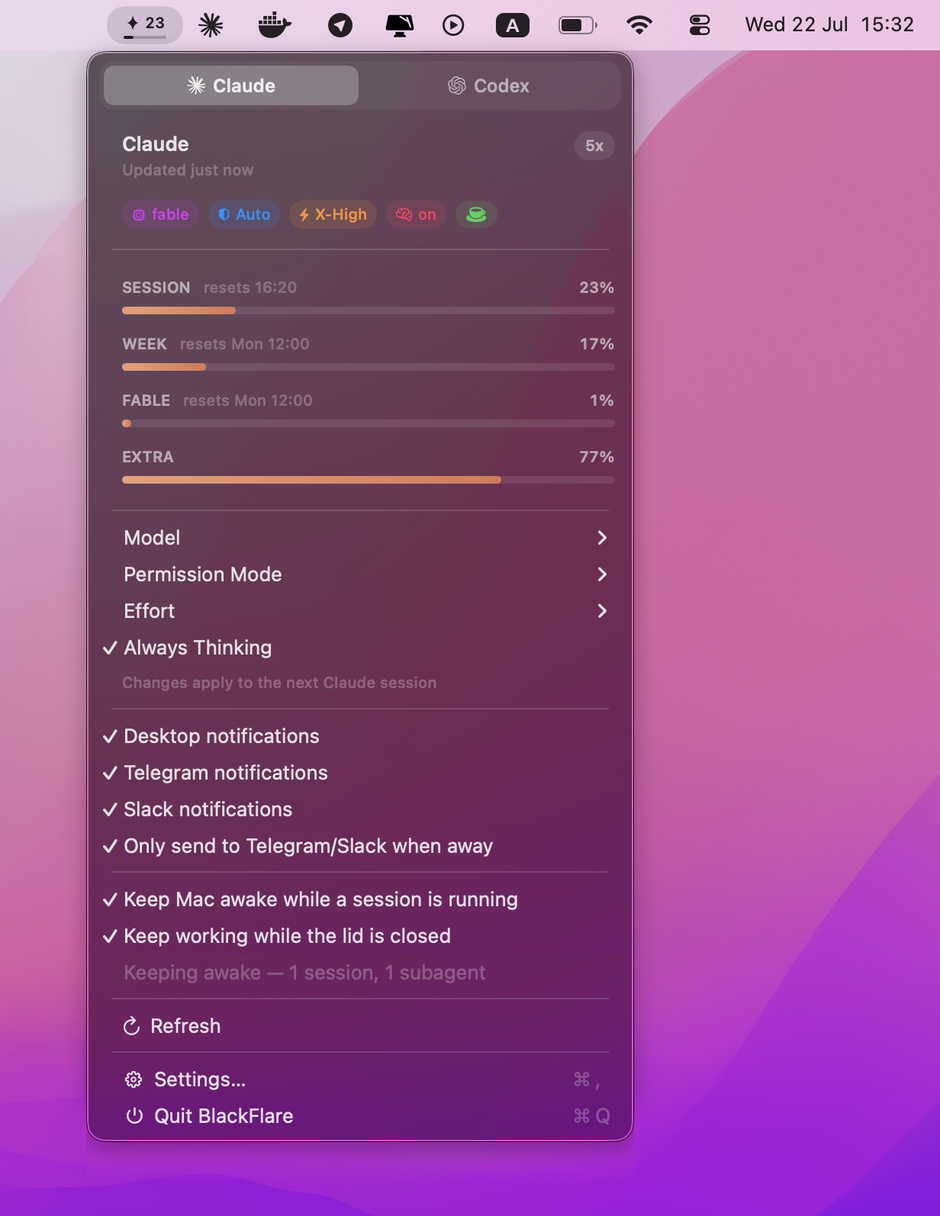
A sleeping Mac is a stalled agent. While a Claude or Codex session is running, BlackFlare keeps your Mac awake — and with Keep working while the lid is closed switched on, even a shut MacBook keeps going. No external display, no caffeinate hacks. On battery, a floor you set pauses it before the charge runs low — and the moment the session ends, normal sleep resumes on its own.
Know the instant it needs you
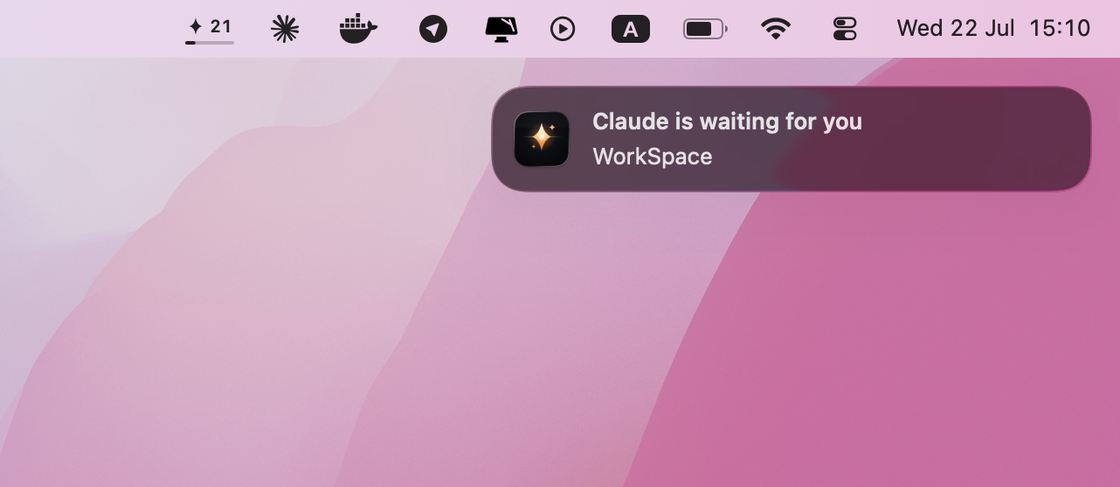
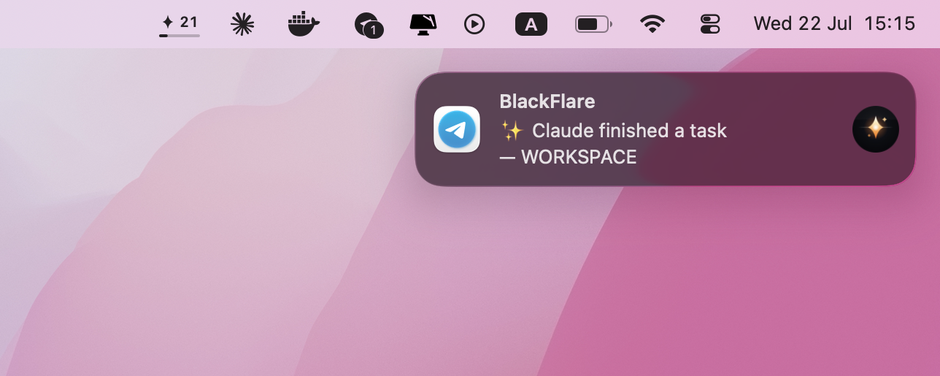
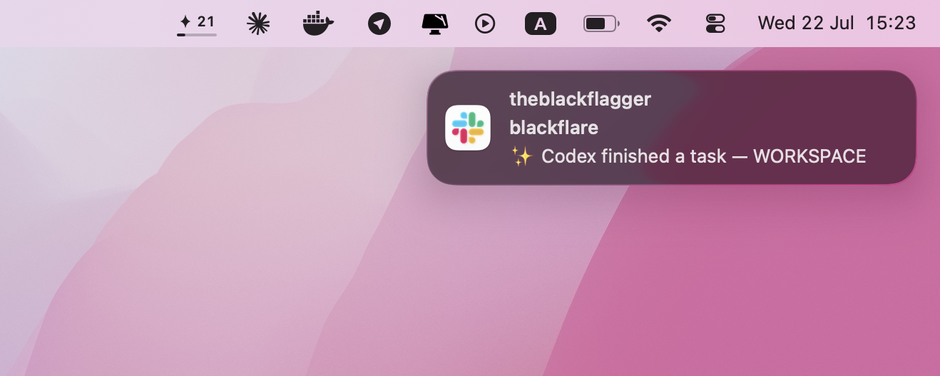
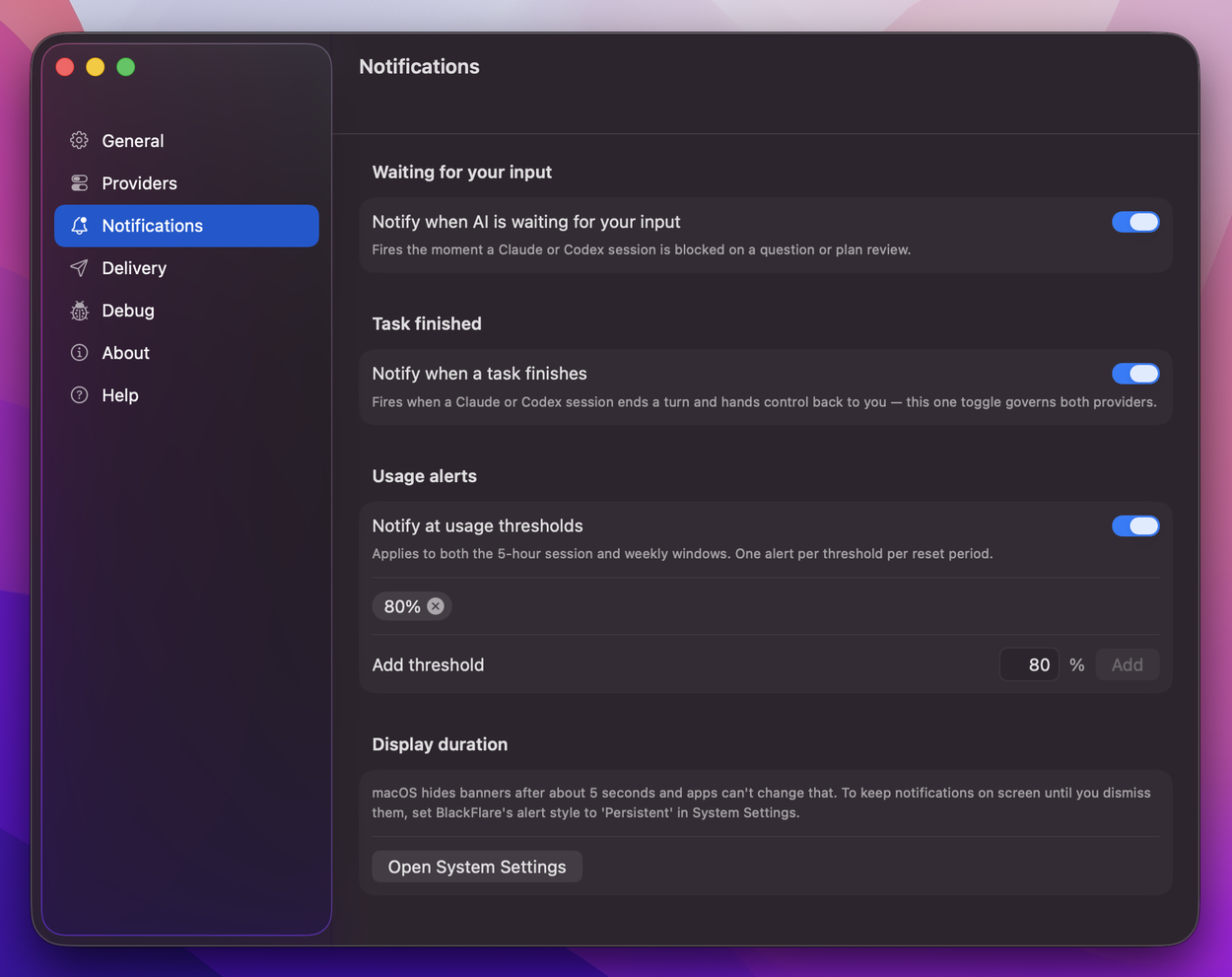
The moment Claude or Codex is waiting for input — or finishes a task — BlackFlare sends you a notification. Every session counts: the CLI in your terminal and agents running inside VS Code or JetBrains.
On your Mac. Or your phone.
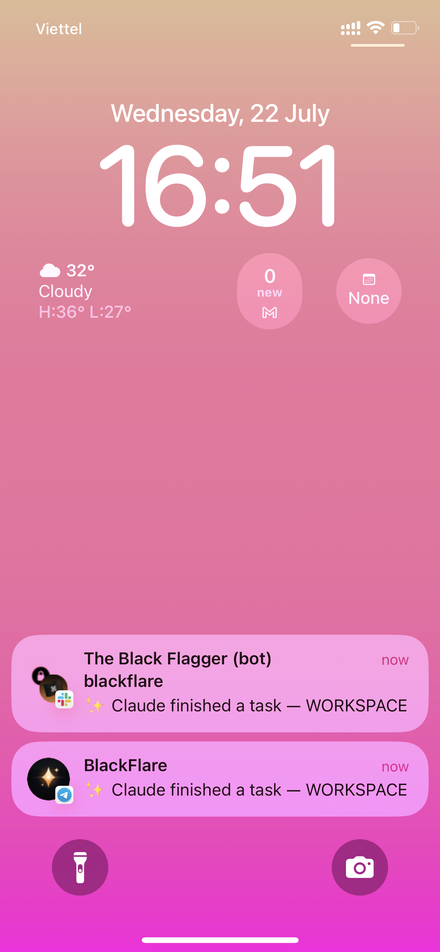
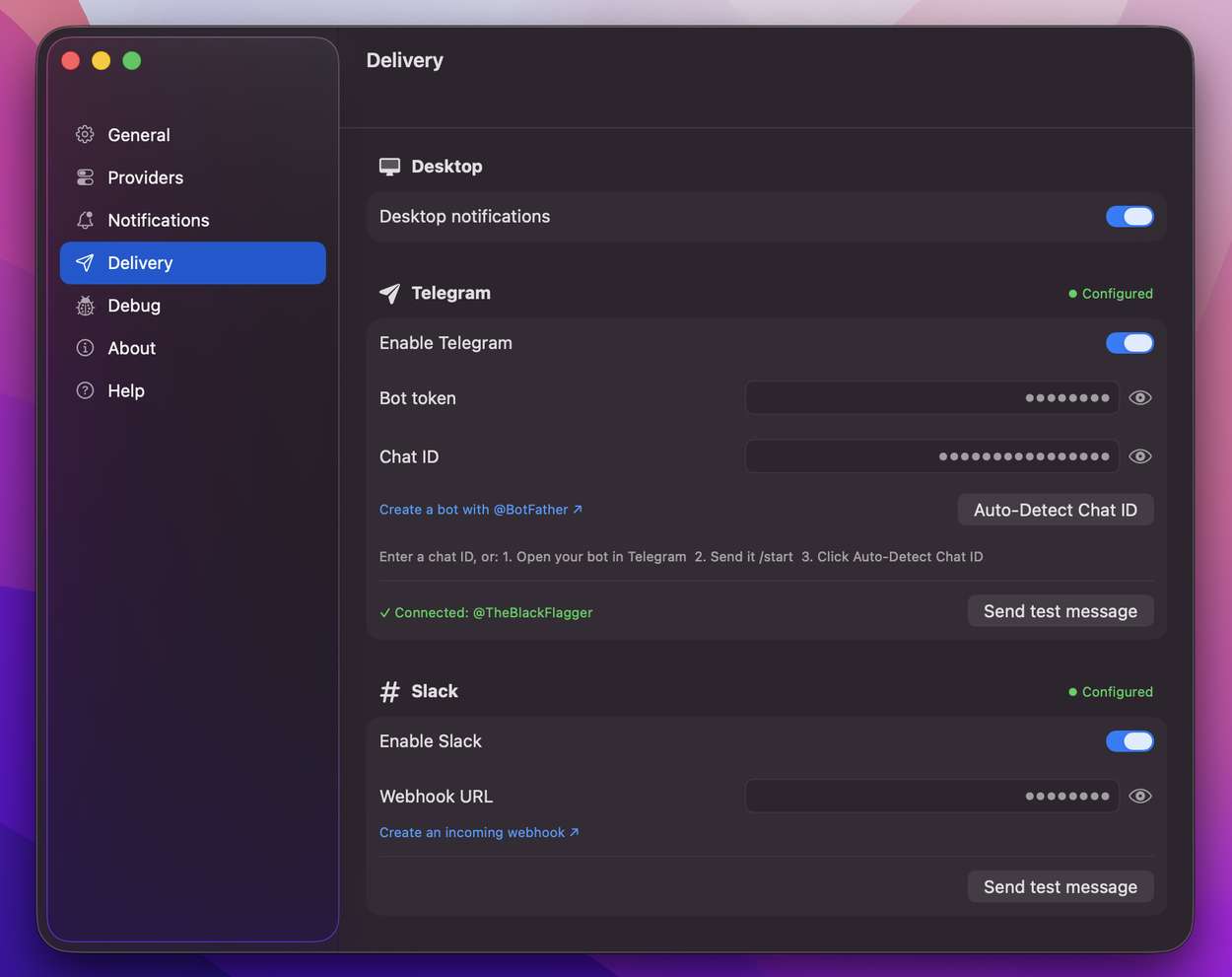
Route notifications to Telegram or Slack and go touch some grass while your agents work. Flip on "only when away" and BlackFlare stays quiet at your desk — reaching your phone only once you've actually stepped out.
Set the defaults. Ship faster.
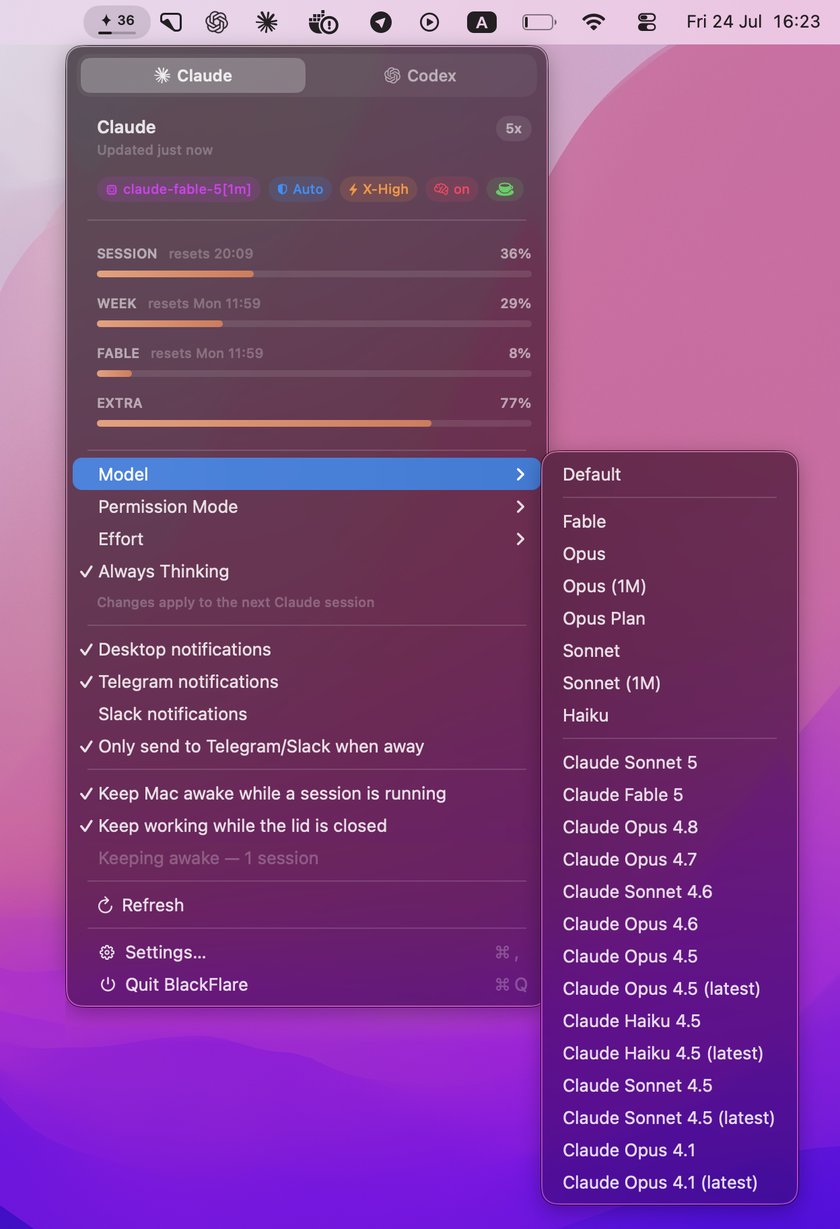
Pick your default model, permission mode, effort level, and thinking mode right from the menu bar. BlackFlare applies them to your next session — no flags to remember, no config files to hand-edit.
See your limits before you hit them
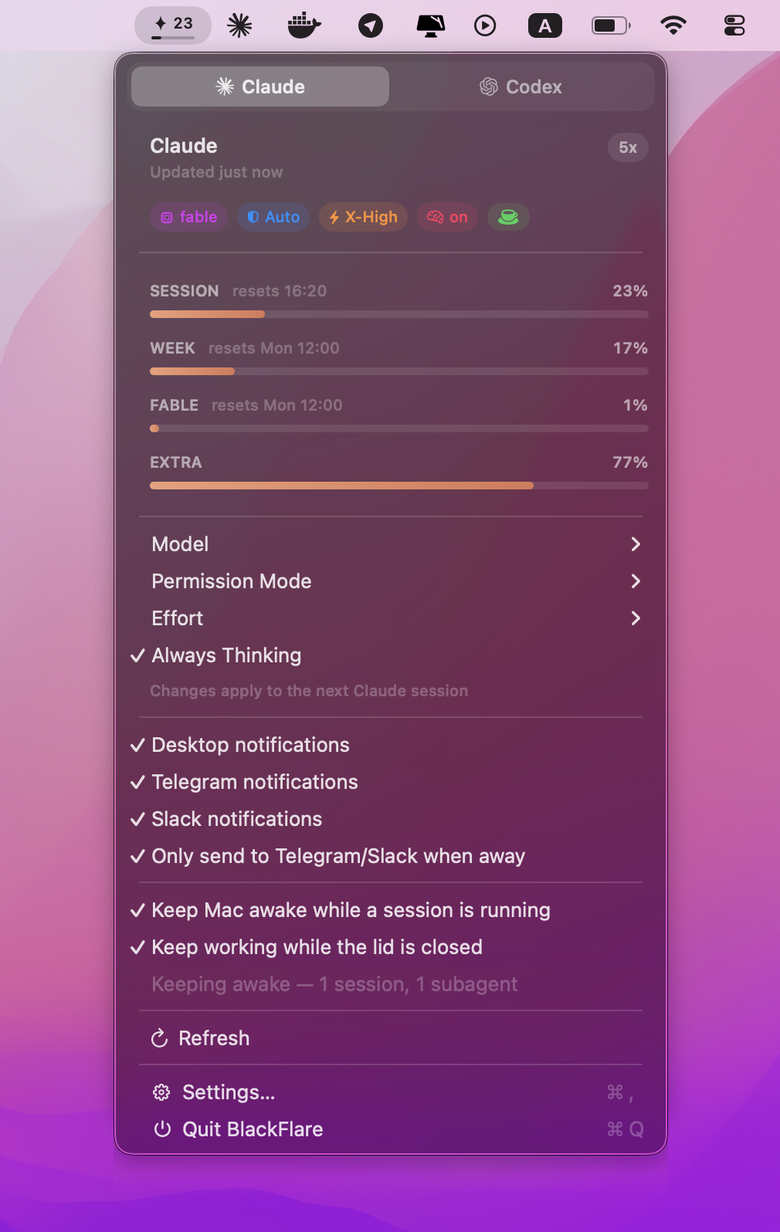
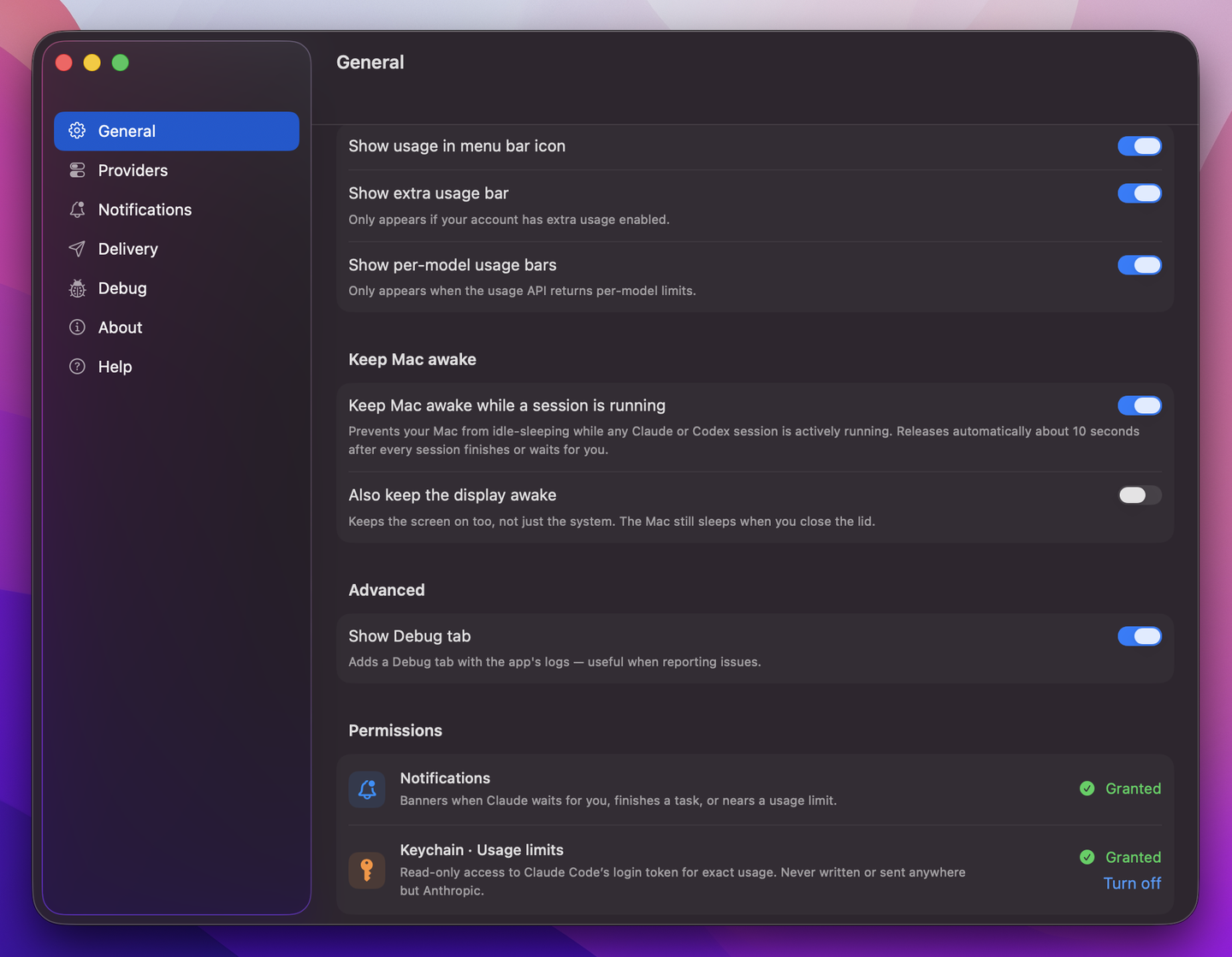
Your Claude and Codex usage lives in the menu — and right in the menu bar icon. Track each model on its own, keep an eye on extra usage, and get a heads-up the moment you cross a threshold you set. No more mid-task surprises.
Private by design. Actually.
BlackFlare asks for exactly one thing: read-only Keychain access to your Claude token, used only to show your exact usage. That token is never written or sent anywhere but Anthropic. No accounts, no analytics, no telemetry — BlackFlare collects nothing about you. Ever.
- ✓ Runs entirely on-device
- ✓ Read-only Keychain access
- ✓ Token only ever reaches Anthropic
- ✓ Zero telemetry, zero accounts
Up and running in a minute
Three steps, then go be human
- 1
Install
Open and drag it to Applications. From there it lives quietly in your menu bar.
- 2
Grant Permissions
Two gentle asks: notifications, so it can tap you on the shoulder, and Keychain — read-only — to read your usage limits. Nothing more, ever.
- 3
Walk away
Start a session and go enjoy life. BlackFlare keeps watch, and pings you when it matters.
Thoughtful down to the last toggle
Built like a native Mac app should be
Questions, answered
Frequently asked
Does it work with the CLI and with IDEs?
Yes. BlackFlare watches Claude Code and Codex sessions whether they run in your terminal or inside VS Code and JetBrains IDEs.
Which AI tools are supported?
Claude Code and Codex — both notifications and usage, side by side in the same menu.
Where does my token go?
Nowhere new. BlackFlare reads your Claude token from the macOS Keychain (read-only) to show your exact usage. It is never written or transmitted anywhere except Anthropic.
Do you collect any of my data?
No. No accounts, no analytics, no telemetry. Everything runs on your Mac.
Can it notify my phone?
Yes — via Telegram or Slack, with an "only when away" mode so you're not pinged twice while you're sitting at your desk.
Will it keep my Mac from sleeping?
Only while a session is running, so long tasks don't stall. Normal sleep behavior resumes automatically the moment the session ends — and with Keep working while the lid is closed switched on, even a shut MacBook keeps going until then.
Does it work with the lid closed — no external display?
Yes. Keep working while the lid is closed is an opt-in option under Keep Mac Awake: after a one-time helper approval in System Settings, your sessions keep running after you shut the lid — no external display, no caffeinate hacks. You choose when it applies — plugged in, on battery, or both — and on battery a floor you set (15% by default) pauses it and notifies you before the charge runs low. Normal sleep returns on its own the moment your sessions finish.
What do I need to run it?
A Mac on macOS 13 or later. It's a universal build for both Apple silicon and Intel.